CMS Masonry Lightbox
Turns a CMS collection into a masonry gallery with a lightbox and filters. No code needed.
Overview
Turns a CMS collection into a masonry gallery with a lightbox and filters. No code needed.
- Auto-adapting masonry layout for any CMS collection
- Built-in lightbox for images and videos
- Category filtering with single or multi-select
- Customizable hover effects and transitions
- Fully responsive grid (1-12 columns)
- Custom category pill styling
- Works with any CMS field structure
- Zero coding required
Masonry Galleries from Your CMS
Turns a CMS collection into a masonry gallery with a lightbox and category filters, all set up in the properties panel. Use it for portfolios, product galleries and media libraries.
Features
Masonry layout. Connect a CMS collection and the items lay out in a Pinterest-style grid, with 1 to 12 columns and your own gap.
Lightbox. Click an image or video to open it full screen. The component detects whether each item is an image or a video.
Category filters. Add filter pills that read the categories from your CMS, in single-select or multi-select mode. Set the pill colors, fonts and spacing.
Hover effects. Scale, fade, slide or bounce, with adjustable overlay colors, icons and shadow intensity.
Grid controls. Change columns, gaps and shadows in the properties panel and see the result straight away.
Use Cases
Portfolio galleries. Visitors filter design work by project type.
Product galleries. Product photos open in the lightbox for a closer look, filtered by category.
Photography sites. The masonry layout handles photos of different heights.
Case study libraries. Client work grouped into filterable categories, with a quick preview.
Media archives. Images and videos in one collection, both playable in the lightbox.
How to Use
Setup
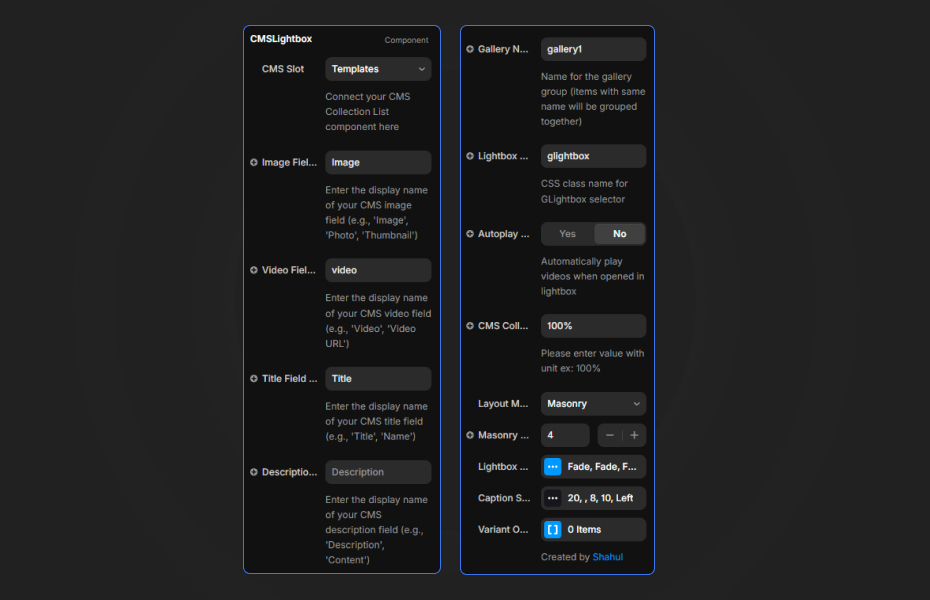
Connect Your CMS
- Drag the component onto your canvas
- In the properties panel, click "Connect CMS"
- Select your CMS collection
- The masonry layout appears automatically
Configure Layout
- Set your preferred number of columns (1-12)
- Adjust gap spacing between items
- Choose shadow intensity for depth
Enable Lightbox (optional)
- Toggle "Enable Lightbox" in the properties panel
- Specify your CMS image field name (default: "image")
- Specify your CMS video field name (default: "video")
- Customize hover effects and overlay styles
Add Category Filtering (optional)
- Paste the CMSMasonboxFilter component above your gallery
- Set the "Category Field" to match your CMS field name
- Choose single or multi-select mode
- Customize pill colors, fonts, and spacing
Both components connect through a shared "Store Key", so you don't link them by hand.
Quick Tips
Columns. 3 to 4 columns on desktop, 2 on tablet and 1 on mobile read best.
Field names. Your image and video field names must match the names set in the properties panel exactly.
Filter setup. If your CMS uses a different field name for categories, update it in both components.
Large collections. For 90+ items, consider a CMS pagination limit.
How to install CMS Masonry Lightbox in Framer
- Purchase CMS Masonry Lightbox above
- Open your FramerHub dashboard
- Find CMS Masonry Lightbox in Recent Purchases and click "Copy URL"
- Open your Framer project
- Paste it anywhere on the canvas (Cmd/Ctrl + V)
License
Single-use license: use it in one client project with full commercial rights. No redistribution. 1 license = 1 client.
Questions before buying? Read the refund policy or email hello@framerhub.io.
CMS Masonry Lightbox - $29
Turns a CMS collection into a masonry gallery with a lightbox and filters. No code needed.

Trusted by agencies and freelancers
2,000+ Framer users rely on FramerHub plugins and components to build serious client sites.
"The Best Framer CMS Filtering Plugin I've Found — Truly a Game-Changer. I've tested a lot of Framer CMS filtering and sorting components — both free and paid — and this is by far the best one I've come across."
- Pierre Azalbert · CMS Filter
"Excellent product and super speedy and helpful support from the team!"
- Chloe Dovey · CMS Masonry Lightbox
"We had tried a couple of other Framer CMS filter components but they were buggy, hard to use and support was slow or non-existent. CMSFilter is easier to use and has a lot of added functionality."
- Mark Williamson · CMS Filter
"CMS Masonry-Lightbox is a super flexible and polished CMS grid that makes any portfolio shine. I especially love the support for local videos and the great customer support behind it."
- Rick van der Wal · CMS Masonry Lightbox
"I got a CMS featuring setup from Shahul Hameed, and it works perfectly. He was super helpful, guided me through everything, and even stayed up late to make sure I had no issues. Great experience overall!"
- Amarachi · CMS Filter
"Very happy with this purchase. Also the creators are very helpful, can only recommend."
- Petia Dimitrova · CMS Masonry Lightbox
"He really helped me out when I needed assistance adding it to my Framer project. Super fast customer support highly recommend!"
- Salman Abdulrazaq Ali
"Love the plugin, so glad you made it. … Thanks for building what Framer should have, you did a great job with it."
- Nathaniel DeSantis, Podcast Studio X · CMS Scheduler
"I updated the main CMS component in Framer and the bug is fixed now :) You are quick man! Love it."
- Marek · CMS Filter
"Amazing! This fixed the issue. Thanks so much for the help :)"
- Julie Elise Hauge · CMS Filter
Got questions? We've the answers
Got questions? We've the answers
Everything you need to know about FramerHub.