Interactive Particles
Turns any image into a 3D particle field that reacts to mouse and touch.
Overview
Turns any image into a 3D particle field that reacts to mouse and touch.
- Converts any image into interactive particles
- Mouse and touch interaction with ripple effects
- Five particle shapes (circle, square, soft-square, star, hexagon)
- Full color or black & white modes
- Adjustable 3D depth and particle spread
- Performance-optimized with quality controls
- Optional entrance animation
- Works in any section or layout
Turn any image into interactive particles
Interactive Particles rebuilds an image out of thousands of small particles that keep the original composition. Move the mouse or a finger over it and the particles ripple away and drift back, floating at different depths so the image gains a 3D parallax. It makes a portrait, logo or product photo feel alive without any video.
You upload the image, choose full color or black and white, pick a particle shape, and set depth, spread, interaction strength and quality in Framer's properties panel.
Features
Image to particles. Any uploaded image becomes a particle field.
Mouse and touch ripple. Smooth, organic displacement under the pointer, on desktop and mobile.
Five particle shapes. Circle, square, soft-square, star and hexagon.
Color modes. Full color, or black and white with four contrast presets.
3D depth. Adjustable depth and spread for subtle or dramatic parallax.
Entrance animation. Optional animation as the particles assemble.
Where Interactive Particles works best
Personal portfolios. Use your portrait in Black & White with the Natural preset as the hero image. Visitors who move the mouse over it get a small surprise, and the page feels made rather than templated.
Founder and team pages. A founder photo in particles next to the company story turns a standard About page into something people remember.
Logo reveals. A high-contrast logo with the entrance animation on works as a brand moment at the top of a launch page.
Product highlights. A product shot in full color with hexagon or soft-square particles gives a tech product a distinctive look.
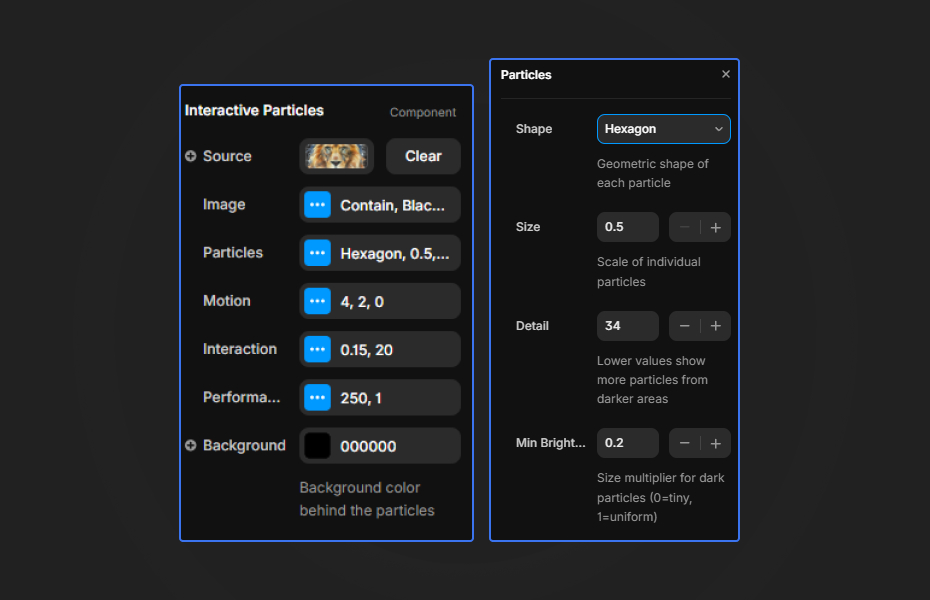
How to Use
Customization
Image setup
- Upload your image
- Fit: Fill, Cover, Contain or Scale Down
- Style: Full Color or Black & White
- Contrast preset (Black & White mode)
Particle appearance
- Shape (five options)
- Particle size
- Detail level (brightness threshold)
Motion and effects
- Entrance animation on or off
- 3D depth and particle spread
- Freeze movement for a static look
Interaction
- Touch interaction size
- Touch strength (how far particles move)
Performance
- Max resolution (lower is faster)
- Sampling rate (1 = highest quality, 4 = fastest)
- Minimum brightness size
Starting settings
Natural portrait. Black & White, Natural preset, circle particles, depth around 4, spread around 2.
Bold logo. Full Color, hexagon particles, entrance animation on, stronger touch strength.
Still image. Freeze movement on, soft-square particles, for a textured but calm image.
Performance and mobile
Start with the defaults. If the page feels heavy, lower max resolution to about 200 and set sampling to 2. Keep depth around 4 and spread around 2 for a natural look; higher values are dramatic but can blur the subject. Touch works on phones, so the effect is not lost on mobile.
Compared with similar components
Liquid Data Hologram turns an image into a liquid, holographic particle effect. Quantum Nebula has a hologram mode that extrudes an image into 3D particles. Dot Text applies particles to words instead of images. Choose Interactive Particles when you want a recognizable image that visitors can touch.
How to install Interactive Particles in Framer
- Purchase Interactive Particles above
- Open your FramerHub dashboard
- Find Interactive Particles in Recent Purchases and click "Copy URL"
- Open your Framer project
- Paste it anywhere on the canvas (Cmd/Ctrl + V)
License
Single-use license: use it in one client project with full commercial rights. No redistribution. 1 license = 1 client.
Questions before buying? Read the refund policy or email hello@framerhub.io.
Interactive Particles FAQ
What kind of image works best?
High-contrast images with a clear subject: portraits, logos and silhouettes. Busy photos with low contrast turn into noise.
Does it work with touch?
Yes. Particles respond to both mouse and touch with a ripple, and you can set the size and strength of the interaction.
Can I show the image in black and white?
Yes. Switch the style to Black & White and pick one of four contrast presets: Natural, Balanced, Soft or Bright.
What should I do if the effect is slow?
Lower the max resolution to around 200 and raise the sampling rate to 2. Both reduce the number of particles with little visible change.
Interactive Particles - $9
Turns any image into a 3D particle field that reacts to mouse and touch.


Trusted by agencies and freelancers
2,000+ Framer users rely on FramerHub plugins and components to build serious client sites.
"The Best Framer CMS Filtering Plugin I've Found — Truly a Game-Changer. I've tested a lot of Framer CMS filtering and sorting components — both free and paid — and this is by far the best one I've come across."
- Pierre Azalbert · CMS Filter
"Excellent product and super speedy and helpful support from the team!"
- Chloe Dovey · CMS Masonry Lightbox
"We had tried a couple of other Framer CMS filter components but they were buggy, hard to use and support was slow or non-existent. CMSFilter is easier to use and has a lot of added functionality."
- Mark Williamson · CMS Filter
"CMS Masonry-Lightbox is a super flexible and polished CMS grid that makes any portfolio shine. I especially love the support for local videos and the great customer support behind it."
- Rick van der Wal · CMS Masonry Lightbox
"I got a CMS featuring setup from Shahul Hameed, and it works perfectly. He was super helpful, guided me through everything, and even stayed up late to make sure I had no issues. Great experience overall!"
- Amarachi · CMS Filter
"Very happy with this purchase. Also the creators are very helpful, can only recommend."
- Petia Dimitrova · CMS Masonry Lightbox
"He really helped me out when I needed assistance adding it to my Framer project. Super fast customer support highly recommend!"
- Salman Abdulrazaq Ali
"Love the plugin, so glad you made it. … Thanks for building what Framer should have, you did a great job with it."
- Nathaniel DeSantis, Podcast Studio X · CMS Scheduler
"I updated the main CMS component in Framer and the bug is fixed now :) You are quick man! Love it."
- Marek · CMS Filter
"Amazing! This fixed the issue. Thanks so much for the help :)"
- Julie Elise Hauge · CMS Filter
Got questions? We've the answers
Got questions? We've the answers
Everything you need to know about FramerHub.