Before After Picture
A before-and-after image slider with arrow handles.
Overview
A before-and-after image slider with arrow handles.
- Three interaction modes (drag, click, or hover)
- Smooth drag interaction with touch support
- Click anywhere to jump divider position
- Hover for automatic follow-cursor interaction
- Circular handle with customizable icons
- Upload one image containing both left and right icons
- Responsive images with srcSet support
- Fully customizable label styling (position, colors, border)
- Adjustable initial divider position
- Optional before/after labels with backdrop blur
- Label position control (top or bottom)
- Works on any layout or screen size
- Hover scale effect on handle
- No coding required
A before/after image comparison slider for Framer
Before After Picture stacks two images and splits them with a divider. Visitors drag the round handle, click anywhere, or simply move the cursor to reveal more of one image or the other. It is the clearest way to show a change: a retouched photo, a renovated room, a redesigned interface, a product result.
You upload the two images, choose the interaction mode, and style the divider, handle, icons and labels in Framer's properties panel. Images are served responsively with srcSet, so phones download smaller files.
Features
Three interaction modes. Drag the handle, click to jump the divider, or let it follow the cursor on hover.
Clear handle. A circular handle with arrows (or your own icons) that grows on hover so people know it moves.
Touch support. Drag and click work with fingers on phones and tablets.
Labels. Optional Before and After labels with position, colors, border, radius and backdrop blur.
Responsive images. Automatic srcSet so each device gets a suitably sized image.
Where Before After Picture works best
Retouching and color-grading portfolios. Put each edit in its own slider with labels "Original" and "Edited". Prospective clients see the skill directly, which a gallery of finished images cannot show.
Renovation, interior and landscaping businesses. Use Drag mode with the divider starting at 50% on project pages. Pair each slider with a short line on scope and timeline.
SaaS redesign case studies. Compare the old and new interface at the same screen size. Click mode lets readers jump between states quickly while they read the text beside it.
Product results. Skincare, cleaning, photo filters or AI image tools can show the result of the product in one interactive frame, often the strongest proof on a landing page.
Presentations and demos. Hover mode needs no clicking, which helps when you are screen-sharing a site to a client.
How to Use
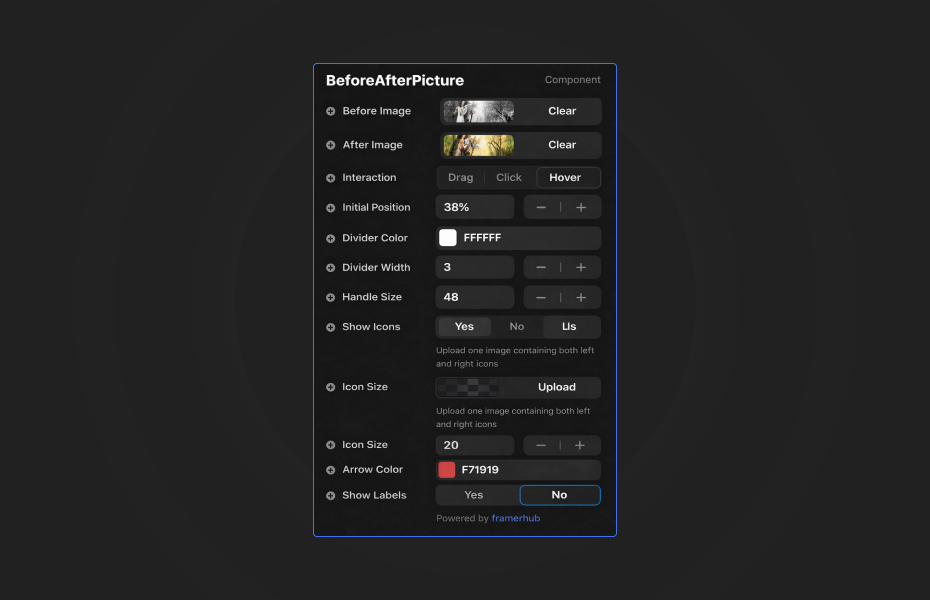
Everything is in Framer's properties panel:
Images
- Before and after images (responsive, with srcSet)
- Initial divider position (0 to 100%)
Interaction
- Mode: Drag, Click or Hover
Labels
- On or off, with custom text
- Position: top or bottom
- Background color with opacity, text color
- Border radius (0 to 50px) and optional border
Icons
- On or off
- One uploaded image with both left and right icons
- Icon height (12 to 40px)
- Arrow color for the built-in arrows
Styling
- Divider color and width (1 to 10px)
- Handle size (32 to 72px)
Starting settings
Case study. Drag mode, divider at 50%, labels on at the bottom with a semi-transparent dark background, 2px white divider, 48px handle.
Product proof. Click mode, divider at 30% so the "after" result dominates, labels on at the top.
Client demo. Hover mode, labels off, a thin divider for a clean look.
Performance and mobile
Export both images at the same size and compress them; the component already serves smaller versions to smaller screens. Choose a divider and handle color that contrasts with both images, and test touch dragging in preview on a real phone. Hover mode has nothing to follow on touch screens, so use Drag or Click on pages with mobile traffic.
Compared with similar components
Portfolio Reveal Hero reveals a second image through an organic blob mask that follows the cursor, which is more decorative than comparative. Scroll Image Reveal reveals a single image as the page scrolls. Choose Before After Picture when the point is to compare two states side by side and let the visitor control the reveal.
How to install Before After Picture in Framer
- Purchase Before After Picture above
- Open your FramerHub dashboard
- Find Before After Picture in Recent Purchases and click "Copy URL"
- Open your Framer project
- Paste it anywhere on the canvas (Cmd/Ctrl + V)
License
Single-use license: use it in one client project with full commercial rights. No redistribution. 1 license = 1 client.
Questions before buying? Read the refund policy or email hello@framerhub.io.
Before After Picture FAQ
Does the before/after slider work on touch screens?
Yes. Drag and click modes work with touch, so visitors on phones can move the divider with a finger. Hover mode follows the cursor, so it is best kept for desktop presentations.
Do both images need to be the same size?
For the cleanest comparison, yes. Use two images with the same dimensions and the subject in the same position, so only the change you want to show moves.
Can I change the arrow icons on the handle?
Yes. Upload one image that contains both the left and right icons side by side, or keep the built-in arrows and set their color.
Can I add Before and After labels?
Yes. Labels can be switched on, renamed, placed at the top or bottom, and styled with background color, opacity, text color, border and radius. They include a backdrop blur.
Before After Picture - $12
A before-and-after image slider with arrow handles.
You might also like



Trusted by agencies and freelancers
2,000+ Framer users rely on FramerHub plugins and components to build serious client sites.
"The Best Framer CMS Filtering Plugin I've Found — Truly a Game-Changer. I've tested a lot of Framer CMS filtering and sorting components — both free and paid — and this is by far the best one I've come across."
- Pierre Azalbert · CMS Filter
"Excellent product and super speedy and helpful support from the team!"
- Chloe Dovey · CMS Masonry Lightbox
"We had tried a couple of other Framer CMS filter components but they were buggy, hard to use and support was slow or non-existent. CMSFilter is easier to use and has a lot of added functionality."
- Mark Williamson · CMS Filter
"CMS Masonry-Lightbox is a super flexible and polished CMS grid that makes any portfolio shine. I especially love the support for local videos and the great customer support behind it."
- Rick van der Wal · CMS Masonry Lightbox
"I got a CMS featuring setup from Shahul Hameed, and it works perfectly. He was super helpful, guided me through everything, and even stayed up late to make sure I had no issues. Great experience overall!"
- Amarachi · CMS Filter
"Very happy with this purchase. Also the creators are very helpful, can only recommend."
- Petia Dimitrova · CMS Masonry Lightbox
"He really helped me out when I needed assistance adding it to my Framer project. Super fast customer support highly recommend!"
- Salman Abdulrazaq Ali
"Love the plugin, so glad you made it. … Thanks for building what Framer should have, you did a great job with it."
- Nathaniel DeSantis, Podcast Studio X · CMS Scheduler
"I updated the main CMS component in Framer and the bug is fixed now :) You are quick man! Love it."
- Marek · CMS Filter
"Amazing! This fixed the issue. Thanks so much for the help :)"
- Julie Elise Hauge · CMS Filter
Got questions? We've the answers
Got questions? We've the answers
Everything you need to know about FramerHub.